Why TiviMate Premium is the Only App You Will Ever Need
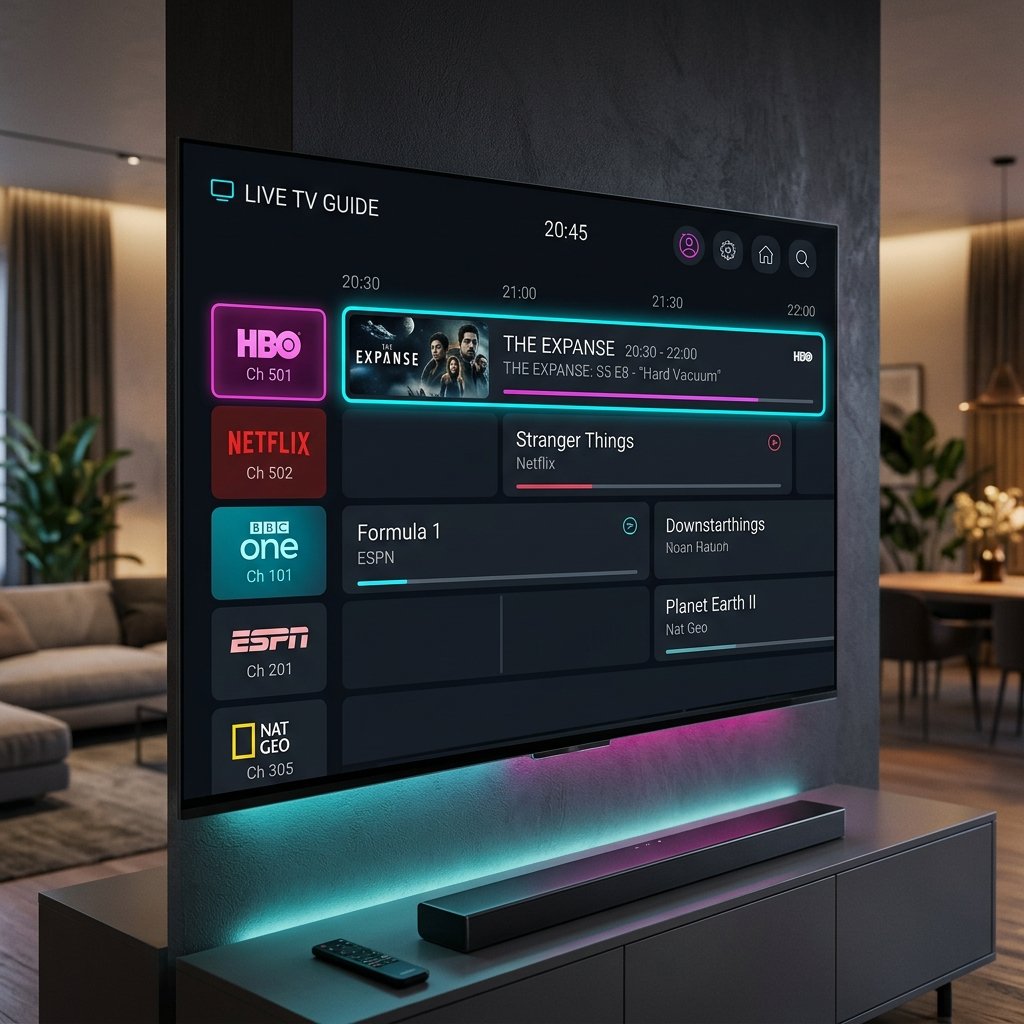
In the expansive and often overwhelming world of digital streaming, discovering the perfect media player can feel like searching for a needle in a haystack. Many applications boast flashy features but fail when subjected to the demands of a massive, 50,000+ channel directory. However, for users operating within the Android ecosystem, there is an undisputed king. Welcome to our comprehensive tivimate guide. Over the last few years, TiviMate has emerged from obscurity to become the absolute gold standard for television streaming, offering an interface that heavily mimics and even surpasses high-end satellite broadcasting hardware.
If you have recently purchased an Amazon Firestick, an Nvidia Shield, or any television running Android TV, installing this application should be your absolute first priority. In this in-depth walkthrough, we will cover the initial setup using Xtream Codes, the process of unlocking the Premium tier, and how to harness its advanced features like Picture-in-Picture and multi-playlist management. If you require a high-quality streaming line to test this software, you can instantly request an iptv free trial from our home page before continuing.
Key Takeaways
- TiviMate is designed exclusively for television screens and is navigated entirely via a directional remote control.
- The free version allows basic viewing, but the ‘Premium’ upgrade is practically mandatory for a flawless experience.
- It handles incredibly large M3U playlists and EPG data far better than its competitors.
- It allows for extreme UI customisation, including hiding unwanted country groups and managing multiple subscriptions simultaneously.
The Free Version vs TiviMate Premium
Before we delve into the installation specifics within this tivimate guide, it is crucial to address the tiered nature of the application. The developer, AlexR, offers the software via a ‘freemium’ model. The free tier allows you to input your playlist, view live television, and access a very basic version of the electronic programme guide (EPG). For a quick test, it is adequate. However, if you intend to use this software as your primary daily driver, the free version is heavily restricted.
Purchasing TiviMate Premium unlocks a colossal suite of features that justify its reputation. Premium grants you the ability to manage your ‘Favourites’ list (which is essential when navigating 50,000 streams), unlocks the Catch-Up feature (allowing you to rewind live television up to 7 days, depending on your provider), enables multiple playlist support, and permits you to extensively customise the interface appearance, transparency, and panel timeout settings. The Premium upgrade costs roughly £7 per year or around £25 for a lifetime license covering up to 5 devices. This fee is paid directly to the developer, not to us. We firmly believe it is the best £25 you will ever spend on your home entertainment setup.
Step 1: Installing TiviMate on Your Device
The installation method depends entirely on your specific hardware ecosystem. If you are operating a dedicated Android TV device, such as the Nvidia Shield or a Sony Bravia Smart TV, the process is incredibly straightforward. Simply open the official Google Play Store, search for “TiviMate IPTV Player,” and click install.
If, however, you are using an Amazon device, you will quickly find that TiviMate is not hosted on the official Amazon Appstore. You must sideload the application using the Downloader app. If you are unfamiliar with this process, pause here and read our dedicated tutorial on sideloading apps on Firestick. Once you have enabled Developer Options, open Downloader and enter the official TiviMate APK URL (we recommend sourcing this URL from the official TiviMate Reddit community to ensure you download a safe, unmodified version). Install the file and launch the application.
Step 2: Adding Your Playlist
Upon launching TiviMate for the first time, you will be greeted by a stark, dark screen prompting you to “Add Playlist.” Selecting this button will present you with several options: M3U playlist, Xtream Codes, and Stalker Portal. The most vital piece of advice in this tivimate guide is to always select Xtream Codes Login.
While M3U URLs work perfectly fine, they are incredibly long and prone to typos when using a television remote. Furthermore, Xtream Codes allow TiviMate to automatically update your channel list and EPG metadata separately and much faster. Select ‘Xtream Codes’ and input the server address (Server URL), Username, and Password provided to you by our WhatsApp support team. Make sure to double-check for any trailing spaces, as the system is strictly case-sensitive. Finally, tick the box that says “Include VOD” to ensure your movies and series are imported alongside the live television.
Hit ‘Next’. TiviMate will now connect to our UK servers. You will see a progress bar rapidly importing the uk iptv channels and downloading the EPG data. Within 60 seconds, you will be deposited into the incredibly sleek main interface.
Mastering the Interface and EPG
Navigating TiviMate is a joy. The left panel contains your main categories (e.g., UK Sports, UK Movies, Documentaries, International News). The central panel displays the channels within that category, and the right panel displays the upcoming television schedule (the EPG). Pressing ‘left’ on your directional remote brings up the main settings overlay, giving you access to the Search function, the VOD library, and global settings.
One of the main reasons this software is highly regarded is its speed. Even with our massive premium directory loaded, scrolling through the EPG is completely stutter-free. If you find a channel you watch frequently—say, Sky Sports Main Event—you can highlight it, long-press the ‘Select’ button on your remote, and choose ‘Add to Favourites’. This creates a custom folder at the very top of your category list, granting you instant access to your most watched networks without having to scroll.
Advanced Feature: Group Management
A common complaint from cord-cutters is that modern playlists contain *too much* content. If you only care about British television and perhaps US sports, you do not want to scroll past folders for German, Arabic, or Australian regional channels every time you open the app. TiviMate Premium solves this elegantly through Group Management.
Navigate to Settings > Playlists > [Your Playlist Name] > Manage Groups. Here, you are presented with every single category folder provided by our server. You can simply toggle ‘OFF’ any country or category you have no interest in. The next time you open your channel list, it will be beautifully streamlined, containing only the content relevant to you. This level of granular control is rarely found in competing applications like SIPTV or XCIPTV.
Advanced Feature: Catch-Up and Multi-View
If you miss the beginning of a crucial football match or the evening news broadcast, TiviMate Premium supports ‘Catch-Up’ (provided the stream itself supports it on our server end). Channels with Catch-Up enabled will display a small clock icon next to their name in the EPG. You can simply scroll left into the past schedule, highlight the missed programme, and press play to watch it retroactively.
Additionally, for die-hard sports fans, TiviMate features a Multi-View mode. This allows you to split your television screen into two, three, or even four distinct quadrants, playing a different live stream in each one simultaneously. It is the ultimate feature for Champions League nights when multiple fixtures are occurring concurrently. Please note that Multi-View requires a robust internet connection; if you experience lag while running four 4K streams, we suggest reading our guide on how to fix buffering issues.
Security and VPN Integration
While TiviMate itself is a highly secure, closed-source application, the nature of digital streaming in the United Kingdom means you must remain vigilant regarding your network privacy. Internet Service Providers (ISPs) actively monitor high-bandwidth connections and will aggressively throttle traffic they suspect belongs to media streaming.
To ensure TiviMate operates at maximum efficiency without artificial interference, you must route your connection through a Virtual Private Network (VPN). A VPN encrypts your traffic before it leaves your router, making it impossible for your ISP to decipher what data you are downloading. We strongly recommend installing a premium VPN application on your device alongside TiviMate and setting it to connect automatically upon boot. For independent guidance on selecting a robust VPN, refer to the privacy recommendations provided by Privacy International.
Conclusion: Elevate Your Viewing Experience
No tivimate guide can truly do justice to how transformative this application is. It single-handedly elevates the experience of digital streaming from a clunky, frustrating endeavour into a fluid, premium cinematic experience that outshines traditional telecom hardware. While the initial setup requires a few extra steps—especially if sideloading on a Firestick—the resulting speed, customisation, and stability are utterly unmatched.
Once you have configured TiviMate to your exact specifications, hidden your unwanted categories, and populated your Favourites list, you will never want to use another media player again. To unlock the full potential of this software, navigate to our affordable pricing packages, secure your premium UK connection today, and experience television broadcasting exactly as it was meant to be.