Official IPTV Setup Guides: Get Streaming in Minutes
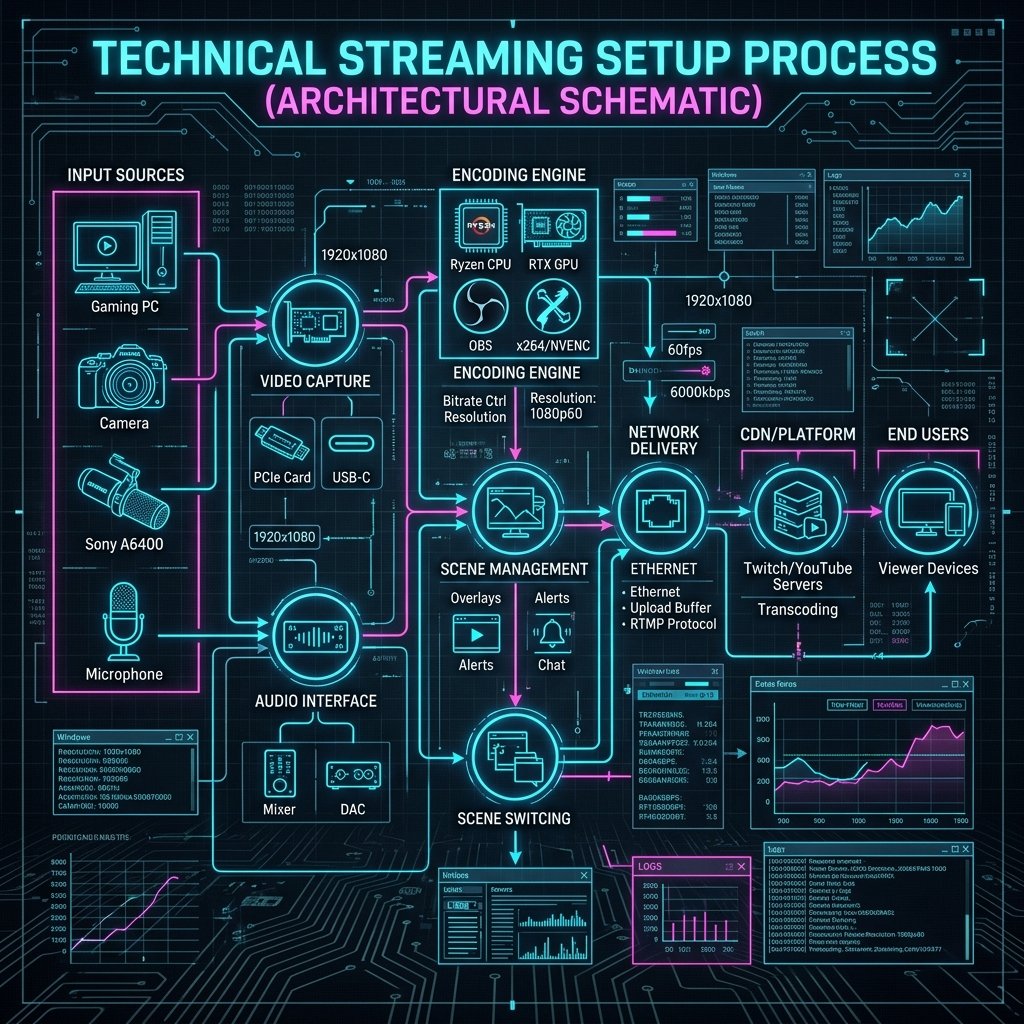
One of the primary concerns for new users migrating away from traditional satellite broadcasting is the perceived technical difficulty of configuring digital streams. The truth is, modern applications have streamlined the installation process significantly. Our collection of comprehensive iptv setup guides is designed to walk you through the process, step-by-step, regardless of your technical expertise. In most cases, you can be up and running, watching live 4K sports, in under five minutes.
Before proceeding with these instructions, ensure you have your login credentials ready. If you have not yet received them, you can request an iptv free trial via WhatsApp, and our automated system will generate your username, password, and portal URL immediately. Once you have these details securely to hand, select your device category below to find the relevant iptv setup guides.
Key Takeaways
- Configuration typically requires only a username, password, and server URL (Xtream Codes API).
- Downloading apps directly from official stores guarantees security and prevents malware.
- Sideloading on Firesticks requires the ‘Downloader’ application.
- Always double-check your credentials for typos; they are strictly case-sensitive.
General Setup Requirements
Regardless of whether you are configuring a massive living room television or a portable tablet, there are three primary pieces of information you will need from us. Historically, users were forced to type out incredibly long M3U URLs. While we still provide these for legacy applications, modern iptv setup guides primarily rely on the Xtream Codes API. This method requires:
- Portal URL: The server address (e.g., http://server.example.com:8080).
- Username: Your unique, case-sensitive login identifier.
- Password: Your secure account password.
Typing this information correctly is the single most common stumbling block for new users. Ensure you distinguish between capital ‘I’, lowercase ‘l’, and the number ‘1’.
Setup Guide for Amazon Firestick & Android TV
Because the Amazon Firestick does not host many premium third-party media players on its official App Store, we must use a technique called ‘sideloading’. This is completely safe and merely involves downloading the application directly from the developer’s website. If you are using a dedicated Android box like an Nvidia Shield, you can usually skip the sideloading and search the Google Play Store directly. For Firestick users, follow these steps:
- Navigate to your Firestick Settings > My Fire TV > Developer Options, and turn on ‘Apps from Unknown Sources’.
- Go back to the home screen, click the search icon, and install an app called Downloader.
- Open Downloader, and type in the official URL for TiviMate or IPTV Smarters (we recommend Smarters for beginners).
- Install the downloaded APK file and open the application.
- Select ‘Login with Xtream Codes API’ and input the credentials provided to you via WhatsApp.
For a more granular breakdown of this process, including screenshots and troubleshooting tips, read our dedicated Firestick setup tutorial.
Setup Guide for Samsung and LG Smart TVs
Installing our service on a native Smart TV is arguably the most straightforward path, as it completely eliminates the need for sideloading. Both Samsung and LG have robust, officially sanctioned applications hosted on their respective app stores. This ranks among the easiest of our iptv setup guides.
To begin, simply press the ‘Home’ button on your remote control and navigate to the App Store. Search for “IBO Player”, “Set IPTV”, or “Smart IPTV”. Once installed and opened, these applications typically display a unique ‘MAC Address’ on the screen. Because navigating a keyboard on a television is cumbersome, these apps allow you to visit their companion website on your smartphone or computer, type in your television’s MAC address, and paste your M3U link there. The television will then sync automatically.
Setup Guide for Apple Devices (iOS & tvOS)
The Apple ecosystem is notoriously locked down, but thankfully, the App Store contains several high-quality media players that fully support our infrastructure. If you are deploying our service on an Apple TV 4K, an iPad, or an iPhone, the process is practically identical across all three devices.
Open the App Store and search for “IPTV Smarters” (sometimes listed under “Smarters Player Lite” due to App Store naming conventions) or “iPlayTV”. Download the application, open it, and select the ‘Xtream Codes’ login method. Enter your portal URL, username, and password. The application will authenticate with our servers and download the latest uk iptv channels list and EPG data within seconds.
Setup Guide for Windows and Mac Computers
Many users wish to run a secondary screen while working from a home office. Configuring a desktop computer or laptop is incredibly fast, as you have the benefit of a physical keyboard for entering credentials. The most universally compatible software for desktop operating systems is VLC Media Player, an open-source program that handles network streams flawlessly.
Simply download VLC from its official website. Open the program, click ‘Media’ in the top-left corner, and select ‘Open Network Stream’. Paste the full M3U URL provided by our team into the box and hit ‘Play’. The stream will begin immediately. Alternatively, you can download dedicated desktop clients for a more television-like interface. For guidance on securing your desktop connection, consult general best practices on the National Cyber Security Centre website.
Troubleshooting Common Errors
If you have followed our iptv setup guides and are still experiencing issues, the culprit is almost always a minor typographical error. The Xtream Codes API is highly sensitive. Ensure there are no trailing spaces at the end of your username or password. Additionally, verify that the portal URL includes the ‘http://’ prefix if the application requires it.
If you successfully log in but experience buffering, check your internet connection speed. We recommend a minimum of 30 Mbps for stable 4K viewing. If your ISP is throttling your connection during high-profile sporting events, setting up a Virtual Private Network (VPN) on your device is highly recommended. To explore affordable access to these premium streams, review our subscription packages today.