Mastering IPTV Smarters: A Step-by-Step Configuration Guide
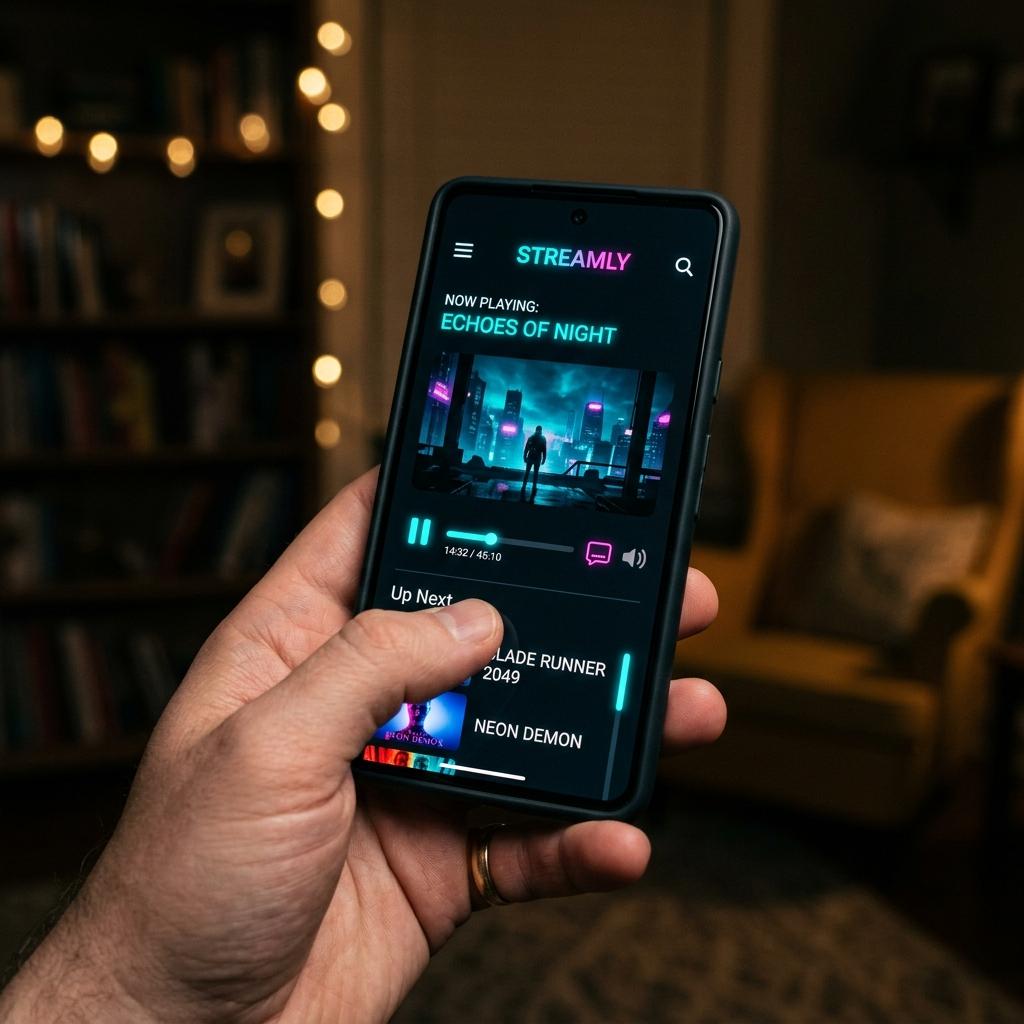
When newcomers first dip their toes into the expansive world of digital cord-cutting, they are often overwhelmed by the sheer volume of media players available. To navigate this technical minefield, finding a robust, user-friendly application is paramount. This brings us to the ultimate iptv smarters guide. IPTV Smarters (often branded as Smarters Pro or Smarters Player Lite on various app stores) has rightfully earned its position as the universal standard for digital streaming. Its brilliant user interface logically separates live television from on-demand content, mimicking the familiar layout of leading global streaming services.
Furthermore, its greatest strength lies in its ubiquity. Whether you are holding an iPhone, operating a Windows desktop, or relaxing in front of an Apple TV, Smarters is available natively. In this extensive tutorial, we will walk you through the absolute best practices for installing, configuring, and maintaining this powerful software. Ensure you have your login credentials securely on hand; if you need to generate a test pass, you can request an iptv free trial from our home page right now.
Key Takeaways
- IPTV Smarters is the most versatile media player, available natively on iOS, Android, macOS, and Windows.
- Logging in via the ‘Xtream Codes API’ method is significantly faster and less error-prone than typing an M3U URL.
- The application allows for deep EPG customisation and robust parental controls.
- Always download Smarters directly from official app stores to avoid malicious, modified clones.
The Xtream Codes Advantage
Before we outline the installation process, it is vital to understand *how* you will be logging into the application. Historically, users were forced to type out a 150-character M3U web link using a directional television remote. This was incredibly tedious and prone to frustrating typographical errors. The most important lesson in this iptv smarters guide is to completely abandon the M3U method whenever possible.
Smarters brilliantly champions the ‘Xtream Codes API’ login. This method securely connects your device to our UK-based servers using three simple, distinct fields: a Portal URL, a Username, and a Password. This dramatically reduces the chance of errors during setup and allows the application to automatically pull down the latest electronic programme guide (EPG) metadata—such as IMDB ratings and movie posters—in the background without crashing your device.
Downloading the Application Safely
Due to its immense popularity, numerous unscrupulous developers have created visually identical clones of Smarters, packing them with intrusive advertisements or, worse, malware designed to steal your credentials. For your own digital security, you must source the application correctly depending on your hardware ecosystem. If you are unsure which hardware performs best, review our list of supported devices.
- Apple Users (iOS/tvOS): Search the official App Store. Due to Apple’s strict naming conventions, it is currently listed under the name “Smarters Player Lite”.
- Android TV / Nvidia Shield: Search the official Google Play Store. It is usually listed prominently under “IPTV Smarters Pro”.
- Windows & Mac: Download the dedicated desktop client directly from the developer’s official website (iptvsmarters.com).
If you are using an Amazon device and cannot find it on the official store, please refer to our dedicated guide on sideloading apps on Firestick.
The Configuration Process
Once the application is safely installed on your device, the actual configuration is a breeze. Following these steps carefully will ensure a flawless connection to our premium 4K broadcasts:
- Open the Smarters application. You will likely be greeted with a ‘Terms of Use’ agreement. Click ‘Accept’.
- You will now see a screen offering multiple login methods. Do not click ‘Load Your Playlist or File/URL’. Instead, select ‘Login with Xtream Codes API’.
- Any Name: This is just a label for your own reference. You can type “Trial Shop” or simply “My TV”.
- Username: Carefully type the unique username provided to you by our WhatsApp support team. It is strictly case-sensitive.
- Password: Type your secure password. Again, watch out for capital letters and ensure there are no trailing spaces.
- URL: Enter the server portal address exactly as provided (e.g., http://server-address.com:8080). Do not forget the port number at the end if one is supplied.
- Click Add User.
Upon clicking ‘Add User’, the application will rapidly contact our servers. It will download the vast uk iptv channels directory, the Video-on-Demand library, and the EPG. Once the progress bars hit 100%, you will be presented with the famous Smarters dashboard featuring four primary blocks: Live TV, Movies, Series, and Settings.
Implementing Parental Controls
A major feature that elevates Smarters above basic, free-tier media players is its robust parental control system. If you have children in the house, you may wish to lock down specific international channels or restrict access to mature VOD content. This functionality is entirely native to the app.
To implement this, navigate to the Settings cog wheel on the main dashboard and select Parental Control. You will be prompted to create a 4-digit PIN code. Once established, you can browse the channel categories and individually lock any folder. Attempting to open a locked folder will now require the PIN, giving you total peace of mind regarding your household’s viewing habits. For broader insights on household internet safety, the Internet Matters UK organisation provides excellent resources.
Troubleshooting EPG and Caching Issues
No iptv smarters guide would be complete without addressing the occasional caching glitch. Because our service pushes tens of thousands of streams and hundreds of thousands of movie posters to your device, the local cache on your television or Firestick can become overwhelmed over time.
If you notice that the TV guide (EPG) says “No Information Available” across all channels, or if the application feels sluggish when scrolling, you simply need to clear the cache. From the main dashboard, click the ‘Settings’ cog wheel and select ‘Clear Cache’. You should also periodically click the circular ‘Refresh’ icons located next to the Live TV and Movies buttons to force the application to download the latest schedule updates from our server.
Conclusion: An Unbeatable Viewing Platform
IPTV Smarters represents the perfect balance of aesthetic appeal and technical robustness. It strips away the frustrating complexity of manual M3U management, replacing it with a fluid, Netflix-style experience that the entire family can easily navigate.
Now that you possess the knowledge to securely install and configure this powerhouse application, it is time to feed it premium content. Head over to our subscription packages, secure your credentials via our instant WhatsApp dispatch system, and transform your living room entertainment tonight.