The Complete Guide to Setting Up IPTV on a Samsung Smart TV
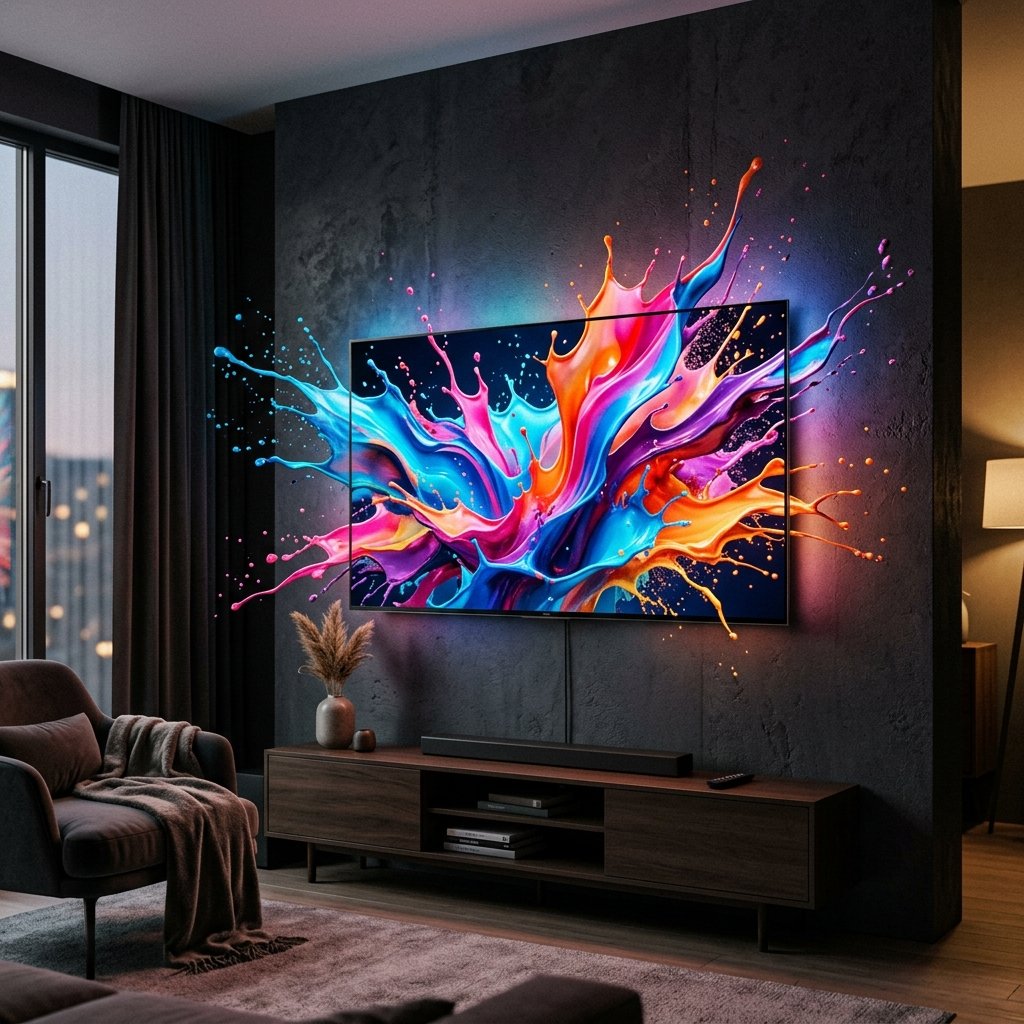
One of the greatest advantages of modern home entertainment is the elimination of unnecessary clutter. If you have recently purchased a beautiful, ultra-thin screen for your living room, the last thing you want to do is ruin the aesthetic by trailing HDMI cables to a bulky external set-top box. Fortunately, configuring iptv on samsung tv natively is easier than ever. Samsung’s proprietary operating system, Tizen, supports a vast array of high-quality media players that can decode our premium streams flawlessly, entirely eliminating the need for Amazon Firesticks or Nvidia Shields.
In this comprehensive tutorial, we will guide you step-by-step through the process of turning your television into an all-in-one cinematic powerhouse. We will cover the best applications available on the official Samsung App Store, how to link your subscription using your MAC address, and crucial troubleshooting tips to ensure zero buffering. If you require login credentials before starting this process, you can easily request an iptv free trial via our homepage.
Key Takeaways
- You do not need to purchase an Amazon Firestick if you own a modern Samsung television.
- Applications like IBO Player, Set IPTV, and Smart IPTV (SIPTV) are available natively on the Tizen App Store.
- Configuration relies on noting down your television’s MAC address and uploading your playlist via a companion website.
- Hardwiring your television directly to your router via Ethernet is highly recommended for stable 4K viewing.
Why Choose Native Tizen Apps?
Before diving into the installation steps, it is important to understand why running iptv on samsung tv natively is often preferable. Firstly, it allows you to control your entire viewing experience using the single, sleek Samsung remote control that came with the unit. You avoid the frustrating juggling act of switching inputs and managing multiple controllers.
Secondly, modern Samsung processors are incredibly robust. Models released from 2020 onwards feature dedicated hardware decoding chips that handle high-bitrate 4K streams exceptionally well. By cutting out the middleman (an external HDMI stick), the television processes the video data directly, often resulting in slightly lower latency—a crucial factor when watching live, fast-paced sports broadcasts.
Step 1: Selecting the Right Application
Unlike Android-based ecosystems where TiviMate reigns supreme, the Tizen landscape is somewhat different. You must select an application from the official Samsung App Store. Because the store frequently cycles which apps are available depending on your exact global region, you should search for the following top-tier options:
- IBO Player: Currently considered the most modern and stable option on Tizen. It features a beautiful Netflix-style interface and handles massive VOD libraries gracefully.
- Smart IPTV (SIPTV): The absolute veteran of the industry. Its interface is highly basic, but it is ruthlessly efficient and loads vast channel lists faster than almost anything else.
- Set IPTV: A fantastic middle-ground application offering a clean Electronic Programme Guide (EPG) and reliable stream decoding.
All of these applications are premium software, meaning they usually offer a 7-day free trial before requiring a small, one-time activation fee (typically around €5 to €8). This fee goes entirely to the application developers, not to us as your streaming provider. For more details on these apps, read our best iptv apps overview.
Step 2: Downloading the App to Your Samsung TV
The installation process for getting iptv on samsung tv is remarkably straightforward. Ensure your television is connected to the internet and follow these instructions:
- Press the Smart Hub / Home button on your Samsung remote.
- Navigate left to the ‘Apps’ section (usually depicted by an icon with four small squares).
- Select the magnifying glass icon in the top right corner to open the search bar.
- Type in the name of your chosen application (e.g., “IBO Player”) using the on-screen keyboard.
- Highlight the application in the search results, click ‘Install’, and wait for it to download.
Step 3: Obtaining Your MAC Address
This is where configuring iptv on samsung tv differs significantly from setting it up on a smartphone or computer. Because typing long, complex URLs into a television using a directional remote is a miserable experience, these applications utilise a companion website method.
Once you open your newly installed application (let’s assume you chose IBO Player), the very first screen will prominently display two pieces of information: a Device ID (or MAC Address) and a Device Key. Write these alphanumeric codes down meticulously on a piece of paper. They are the unique identifiers for your specific television set.
Step 4: Uploading Your Playlist
With your MAC address noted down, you must now move to a smartphone, tablet, or desktop computer. This step links the premium uk iptv channels we provide directly to the app on your television.
- Open a web browser on your phone/computer and navigate to the official website of the application you installed (e.g., iboplayer.com).
- Locate the section labeled ‘Manage Playlists’, ‘Upload Playlist’, or ‘Add Device’.
- Enter the Device ID / MAC Address and the Device Key you wrote down earlier.
- You will then be prompted to paste your M3U URL. This is the extremely long web link provided to you by our support team when you purchased your subscription.
- Click ‘Save’, ‘Upload’, or ‘Send’.
Return to your Samsung television. Close the application completely and reopen it, or press the ‘Reload’ button on the screen. The application will immediately contact the server, download your custom playlist, and populate the screen with thousands of live channels and VOD content.
Crucial Troubleshooting: Preventing Buffering
If you have successfully configured the application but find that high-definition sports streams are buffering, the issue almost invariably lies with the local network connection to the television. While Samsung manufactures brilliant screens, the internal Wi-Fi receivers on televisions are often underpowered compared to a laptop or smartphone.
We strongly recommend abandoning Wi-Fi entirely. Purchase a Cat6 Ethernet cable and run it directly from your internet router into the LAN port on the back of your Samsung television. This provides a hardwired, highly stable connection that eliminates wireless interference from microwaves, walls, and neighbouring networks. You can read extensive data regarding the benefits of Ethernet over Wi-Fi for streaming on tech portals like CNET.
Furthermore, ensure you regularly clear the cache of your television to keep the Tizen OS running smoothly. You can achieve this by holding down the power button on the remote until the Samsung logo appears, effectively performing a soft reboot of the system.
Conclusion: A Streamlined Cinematic Experience
Running iptv on samsung tv provides the cleanest, most integrated viewing experience possible in a modern living room. By utilising native Tizen applications like IBO Player or SIPTV, you bypass the need for external hardware while maintaining incredibly fast access to our global broadcasting network.
If you have followed these steps and are ready to unlock 50,000+ premium networks, head over to our affordable pricing packages to secure your access. Should you encounter any technical hurdles during this setup process, remember that our dedicated support team is available 24/7 via WhatsApp to assist you directly. Enjoy your newly transformed television!